

In an SME, information often moves quickly, sometimes too quickly. A process is stored in a shared document. A decision is buried in a Teams message. Meeting notes sit in an email. Project tracking lives in a spreadsheet. Each tool has its purpose, but together, they can create an organisation that becomes hard to read.
This is exactly what Notion is designed to simplify. The tool helps teams gather, structure and connect information in a single workspace. But to use it properly, you first need to understand how it works.
Notion is built around three simple elements: pages, blocks and databases. Once you understand these three concepts, the tool becomes much easier to approach. It is no longer about “testing another tool”, but about gradually building a clear space to better organise your team’s work.
💡 To get straight to the point, here are the key takeaways.
- Notion is built around three pillars: pages, blocks and databases.
- A page is a workspace where you can organise information, a project or a process.
- A block is each element added to a page: text, heading, image, checklist, table, file or embedded content.
- A database helps structure repeated information, such as projects, tasks, clients or content.
- Understanding the difference between a simple page and a database is essential when getting started.
- For an SME, the right approach is not to build everything at once, but to start with one concrete use case.
- Notion becomes useful when it makes information clearer, easier to access and easier to maintain.
Why Notion can feel difficult at first
Most professional tools follow a familiar logic. A document is used to write. A spreadsheet is used to organise data. A project management tool is used to track tasks. A Drive is used to store files.
Notion combines part of these uses in one space. That is what makes it powerful, but also what can create confusion at the beginning. Many users open Notion, create a page, add a few elements, then quickly wonder: should this be a page? A table? A database? A subpage? A full project space?
The right way to understand Notion is not to start with all its features. It is to understand its building logic. In Notion, you assemble your workspace like a set of building blocks. Pages act as containers. Blocks are used to build the content. Databases organise information that comes back repeatedly.
This logic is what then makes it possible to create an internal wiki, a project tracker, a simple CRM, an editorial calendar or an onboarding space.
If you first want to understand what Notion can be used for in an SME, we have published a dedicated article: Notion: What Is It Really For in an SME?
Pages: your basic workspace
In Notion, everything starts with a page.
A page can look like a traditional document, but it can contain much more than text. You can add images, videos, files, lists, tables, links, subpages or databases.
A Notion page can be used to create:
- meeting notes;
- an internal process;
- a client profile;
- a project page;
- a team homepage;
- an onboarding guide;
- a documentation space;
- a simple dashboard.
The page is the starting point. It is where you gather useful information around a topic.
Here is a simple example. An SME welcoming a new employee can create a “Welcome to the team” page. This page can include useful access links, key contacts, HR documents, tools to set up, first tasks to complete and internal rules to know.
Instead of sending several emails or sharing multiple files, everything is gathered in one clear space.
This is where Notion becomes useful for an SME: it turns scattered information into an organised, readable and easy-to-update space.
Blocks: the building bricks of each page
A Notion page is made of blocks.
A block is every element you add to a page. A line of text is a block. A heading is a block. An image is a block. A checklist is a block. A simple table is a block. An embedded file is also a block.
This logic matters because it makes pages very flexible. You can move a block, transform it, duplicate it, delete it or reorganise it without breaking the whole page.
The most useful blocks for an SME are often the simplest:
- headings to structure a page;
- paragraphs to explain information;
- bullet lists to clarify ideas;
- checklists to track actions;
- simple tables to organise small sets of information;
- file blocks to centralise documents;
- toggle blocks to make a long page easier to read;
- comments and mentions to collaborate with the team.
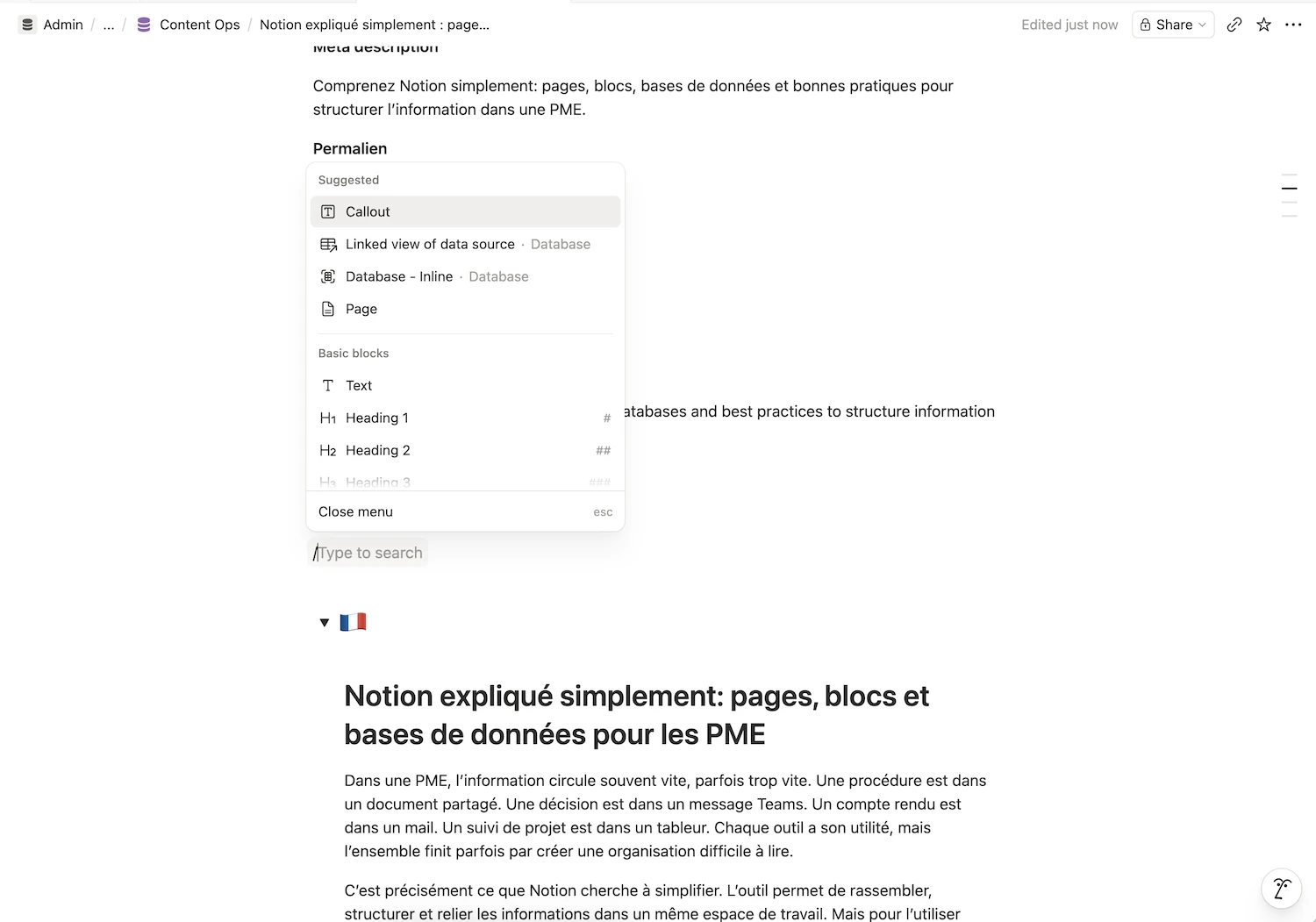
To add a block, simply type “/” in a page. Notion then displays the available options.
A concrete example: a sales team can create a page to prepare for a client meeting. It adds a text block to summarise the context, a checklist for the points to cover, a PDF file with the sales proposal and a few notes after the meeting.
The page remains simple, but it already becomes more useful than an isolated document or an email lost in an inbox.
Databases: the real shift in logic
Databases are often the part of Notion that feels the most impressive. Yet the principle is simple.
A Notion database is used to organise multiple elements that follow the same logic. For example:
- a list of projects;
- a list of tasks;
- a list of clients;
- a list of content pieces;
- a list of processes;
- a list of employees;
- a list of training sessions.
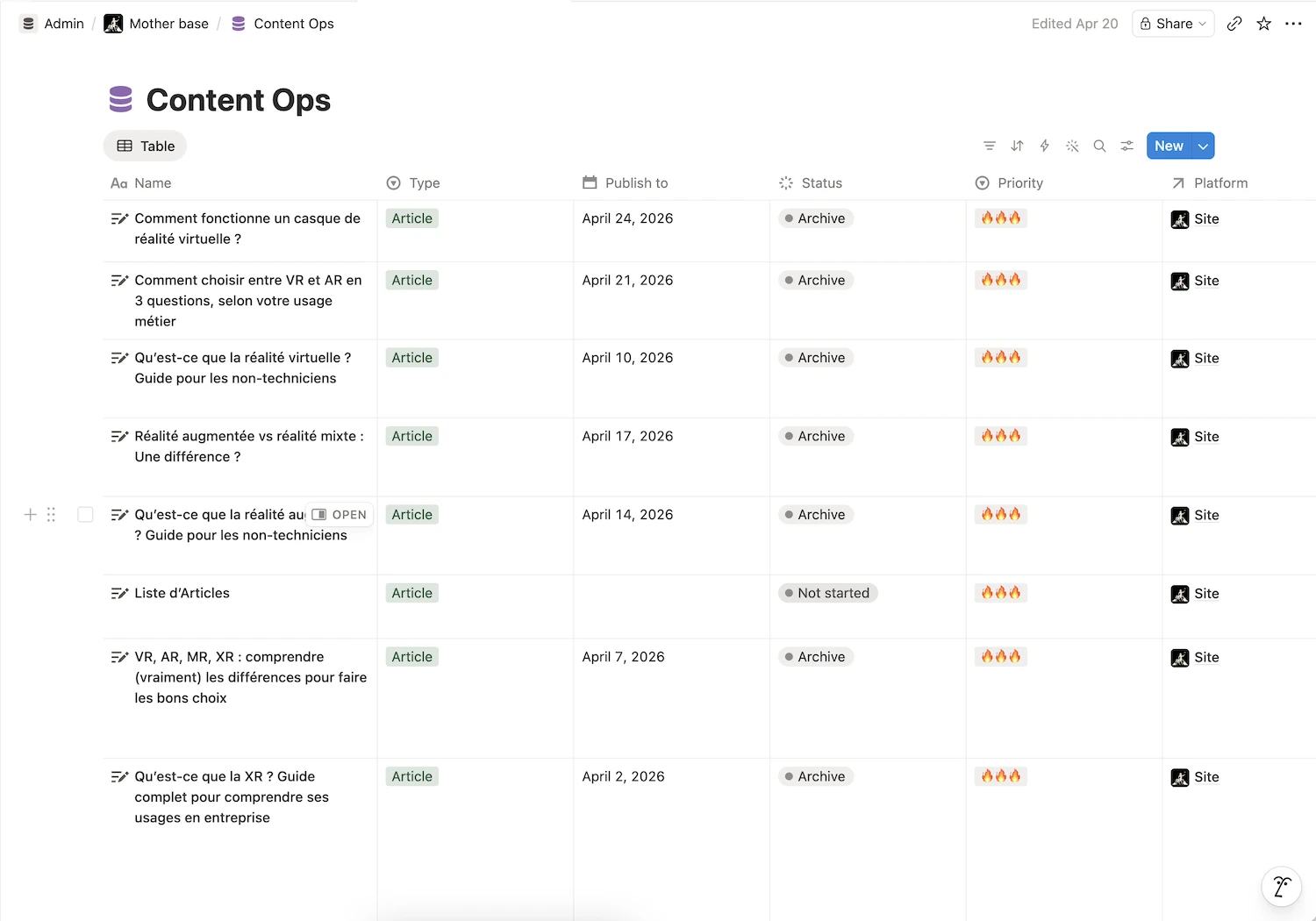
Each element in a database is a page. This page can contain text, files, notes, checklists or other information. But it also has properties: a status, a date, an owner, a priority, a category or a link to another element.
That is what separates a database from a simple table.
In a traditional table, you store rows and columns. In Notion, each row can become a full page, with its own context, documents and history.
Let’s take an example. A “Projects” database could include the following properties:
| Property | Example |
|---|---|
| Project name | Website redesign |
| Owner | Marie |
| Status | In progress |
| Priority | High |
| Deadline | September 15 |
| Related client | Company X |
Each project can then be opened as a page. Inside, the team can find the brief, meeting notes, deliverables, decisions and next actions.
This is where Notion becomes truly structuring: it connects the overview with the operational detail.
Views: displaying the same information in several ways
One of the main benefits of Notion databases is the ability to display the same information through different views.
You do not duplicate the data. You simply change how you look at it.
| View | Main use |
|---|---|
| Table | See all information in a complete format |
| Kanban | Track progress by status |
| Calendar | Visualise deadlines |
| Timeline | Plan a project over time |
| List | Display a simple, readable view |
| Gallery | Highlight visual content or profiles |
The same “Content” database can therefore be displayed as a calendar to see publication dates, as a Kanban board to track writing status, or as a table to manage keywords, authors and links.
This is very useful for an SME, because each person can access the information according to their needs. A business owner may want a summary view. A marketing manager may want a calendar. The operational team may prefer a Kanban board.
Everyone looks at the same database, but not necessarily from the same angle.
Simple page or database: how do you choose?
This is often the question that blocks beginners. Should you create a simple page or a database? The answer depends on the type of information you want to organise.
A simple page is enough when the information is occasional, stable or not very repetitive. For example:
- a process;
- a single meeting note;
- an internal guide;
- a homepage;
- a simple checklist;
- a report;
- a short documentation page.
A database becomes useful when you need to manage several similar elements, sort them, filter them or track them over time. For example:
- several projects;
- several tasks;
- several prospects;
- several articles;
- several employees;
- several training sessions;
- several client requests.
Here is a simple way to decide. If you need to write information so that it can be read, start with a page. If you need to track several elements with statuses, owners, dates or categories, create a database.
Example: a process called “How to publish a blog article” can be a simple page. However, your editorial calendar, with all articles to write, their authors, dates and statuses, should rather be a database.
This distinction prevents a lot of confusion. It helps keep Notion simple at first, then progressively structure what deserves to be structured.
Three simple examples for an SME
To better understand the difference, let’s look at three common use cases.
1. A page for an internal process
An SME can create a page called “How to handle a client request”. This page contains the steps to follow, response templates, useful contacts and mistakes to avoid.
No database is needed here. The goal is simply to document a method.
2. A database to track projects
If the company manages several projects at the same time, a database becomes more relevant. Each project can have a status, an owner, a deadline, a priority and a dedicated page.
The team can then display projects as a table, a Kanban board or a timeline depending on the need.
To go further on this topic, you can read our article on why many companies are switching to Notion to manage their projects: Why are so many companies switching to Notion to manage their projects?
3. A database for an editorial calendar
A marketing team can create a “Content” database. Each content piece becomes a page with its brief, keyword, author, publication date, status and final link.
The same database can be displayed as a calendar to visualise publications, as a Kanban board to track production, or as a table to manage SEO.
This is a good example of what Notion does well: centralising content and making it easier to manage.
Common mistakes when getting started with Notion
Notion gives you a lot of freedom. That freedom is useful, but it can also create disorder if you move too fast.
Here are the most common mistakes.
Trying to build everything from day one
This is probably the number one mistake. Many teams want to create a complete wiki, a CRM, a project space, a dashboard and an onboarding system in the first week.
The risk is simple: the workspace becomes too complex before it is even adopted.
It is better to start with one useful use case. For example, an internal wiki or a simple project tracker.
Creating too many databases
A database is powerful, but it is not necessary for everything.
If information fits into a clear page, there is no need to create a complex structure. Too many databases make the workspace harder to understand, especially for new users.
The right question to ask is: does this information need to be sorted, filtered, tracked or linked to other elements? If the answer is no, a page is probably enough.
Mixing documentation, tasks and projects
In Notion, it is easy to put everything in the same place. But mixing everything eventually creates confusion.
Documentation is used to transmit a method. A task is used to track an action. A project is used to coordinate a set of actions around an objective.
These three levels can be connected, but they should not be confused.
Forgetting to appoint a reference person
Even in a small team, Notion needs a minimum framework. Who creates new pages? Who maintains information? Who archives what is no longer useful? Who checks that templates remain consistent?
You do not need a technical administrator. But it is useful to have someone responsible for keeping the workspace clear.
This role is mainly about preventing Notion from becoming another disorganised shared folder.

✨ Notion is not just a tool. It’s a lever to structure your organization.
To go further, we help you turn Notion into a real work system, tailored to your business challenges.
How to get started with Notion in an SME
The best way to get started is to keep things simple. Before building a full architecture, identify a concrete problem in your organisation. For example:
- the team cannot find processes;
- projects lack visibility;
- meeting notes are scattered;
- sales tracking is too informal;
- onboarding depends too much on managers;
- marketing content is tracked across several files.
Then choose one priority use case.
If your main problem is documentation, start with an internal wiki. If your main problem is operational tracking, start with a project database. If your main problem is content production, start with an editorial calendar.
The logic is always the same: start with a simple need, create a first structure, test it with a few people, then improve it.
Notion works well when it evolves with the team. It works less well when it is designed as a perfect system on paper, but too complex to use daily.
What Notion can really bring
Notion does not replace clear organisation. It makes it more visible.
That nuance matters. The tool does not decide for you how to classify information, how to track your projects or how to document your methods. But it gives you a flexible space to do it in a more readable way.
For an SME, the value can be very concrete:
- less time wasted looking for information;
- fewer duplicated documents;
- less dependency on a single person;
- more clarity across projects;
- better continuity as the team grows;
- processes that are easier to pass on.
The goal is not to put everything in Notion. The goal is to create a reliable reference point for important information.
That is also why it is important to stay pragmatic. Some uses will still require specialised tools: accounting, advanced CRM, regulated HR management, business intelligence or complex project management.
Notion finds its place as a space for structuring, documenting and collaborating. That is already a lot.
In summary
Notion becomes much easier to understand when you distinguish its three core building blocks.
A page is used to organise information or a workspace. A block is used to build the content of a page. A database is used to structure repeated elements such as projects, tasks, clients or content.
For an SME, the right approach is not to build everything at once. Start with a simple page. Then turn what comes back repeatedly into a database. Add views when they genuinely help the team work better.
Notion’s strength is not that it replaces all your tools. It is that it makes your information clearer, easier to access and more useful every day.
Want to structure Notion for your SME?
Understanding pages, blocks and databases is a first step. Adapting them to your organisation is another.
At Black Centauri, we help SMEs design clear, useful Notion workspaces adapted to their real needs: internal wiki, project tracking, simple CRM, onboarding, editorial calendar or dashboard.
The goal is not to add another tool. It is to build a workspace that truly helps your team gain clarity, autonomy and efficiency.
📌 Let’s see what’s truly relevant for you
We work with you to identify priority use cases, structure your workspace and support your teams so it becomes a tool that is truly useful on a daily basis.